
I have been working as a backend developer at Ankama for three years now. During this time I grew used to the data structures we use throughout the company and in most large game studios. I will spare the details but in a nutshell game designers have an interface to manipulate static game data (maps, monsters, spells etc.) which translates into a relational database that is then queried by the game servers and clients.
In my head, this has become my default way of storing game design data in a game. As such, when I go back to developing smaller indie projects I always spend more time than expected finding a clean way to store game data. And oftentimes, this reflection amounts to finding a balance between having a decent interface to modify data and not spending days creating it.
This can take many shapes depending on where you set your expectations on the matter:
So in this article, let's see how I used Godot's features to store static game data in a tile based structure.
💡 Quick note: When I say "static data", I mean all the data that does not change from one player to the other. The data that describes the game mechanics and not the player progression.
The custom data layer system is a feature in Godot's TileSets (the equivalent of tile palettes for Unity users). These data layers allow you to define custom variables which will be stored in each tile of your TileSet but also in each tile placed on a TileMapLayer. This means that, for instance, you can define a speed variable in your TileSet's custom data layer and check its value whenever your player walks on a tile to adjust its speed.
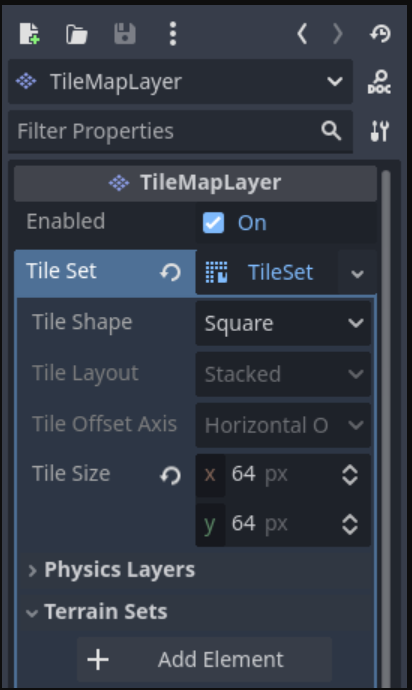
These variables can be of most common types. To set one up, select your Tilemap Layer in the hierarchy. Then open the "TileSet" field and click "Custom data layer".
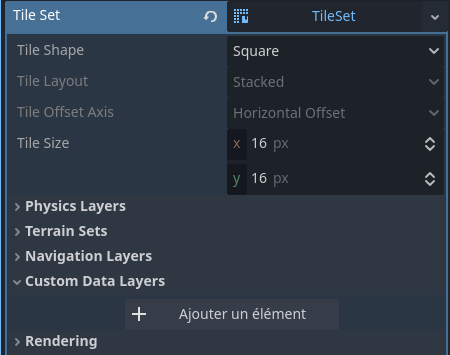
From there, you can add any number of fields to describe the data you want your tiles to hold. You can then fill these fields by going into the "TileSet" tab at the bottom of the editor. From this tab, go to "Select", pick a tile and fill its custom variables.
💡 To have the "TileSet" tab appear, you might need to select a Tilemap layer in the hierarcy.
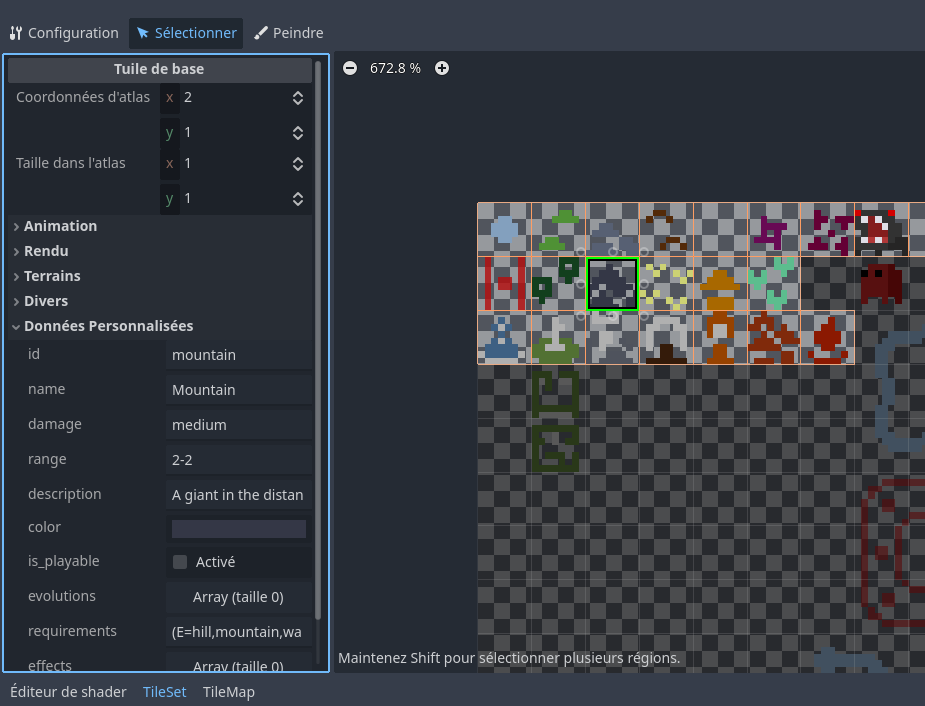
Then, this data is easily accessible via code.
1var cell_coords = Vector2i(0, 0);
2var tile_id = tilemap.get_cell_tile_data(0, cell_coords).get_custom_data("id");$
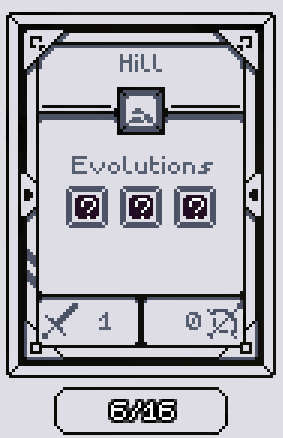
3# 0 represents the layer number in the list of layersIn void Builder, I used the custom data layers to create a "tile dictionary". This allows me to quickly access all the static tile data by using a tile id and to store some dynamic data as well. To do so, I simply parse the TileSet's tiles during the game's initialization and dump the tile data into a custom data object.
Parsing of the TileSet
1const tile_set: TileSet = preload("res://assets/tiles/tiles_8px.tres");
2const TILE_CUSTOM_DATA_NAME_KEY = "name";
3const TILE_CUSTOM_DATA_ID_KEY = "id";
4...
5
6func load_tile_data():
7  var source : TileSetAtlasSource = tile_set.get_source(0);
8  tile_size = source.texture_region_size;
9  for tile_number in source.get_tiles_count():
10		var atlas_coordinates = source.get_tile_id(tile_number);
11    var tile_data = source.get_tile_data(atlas_coordinates, 0);
12    var tile_id = tile_data.get_custom_data(TILE_CUSTOM_DATA_ID_KEY);
13    var tile_name = tile_data.get_custom_data(TILE_CUSTOM_DATA_NAME_KEY);
14    ...
15
16    var custom_tile_data = CustomTileData.new(tile_id, tile_name, ...);
17    tile_dictionnary.set(custom_tile_data.id, custom_tile_data);
Some complex data require additionnal parsing but the CustomTileData class is pretty much a bunch of variables with some getters.
All in all, this system allows me to
If you have played Void Builder, you might have noticed a feature: water tiles snap together to form a river. To do this I used Godot's terrain layers.
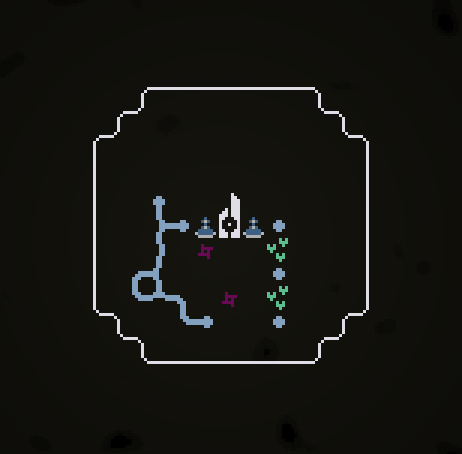
Terrain layers are another feature of Godot's Tilesets. They allow to automatically change a tile's sprite to make it snap to its neighbors. This is set up similarly to a Custom data layer. Select a Tilemap Layer in the hierarchy, open the "TileSet" field and click "Terrain layer".
https://docs.godotengine.org/en/stable/_images/using_tilesets_create_terrain.webp
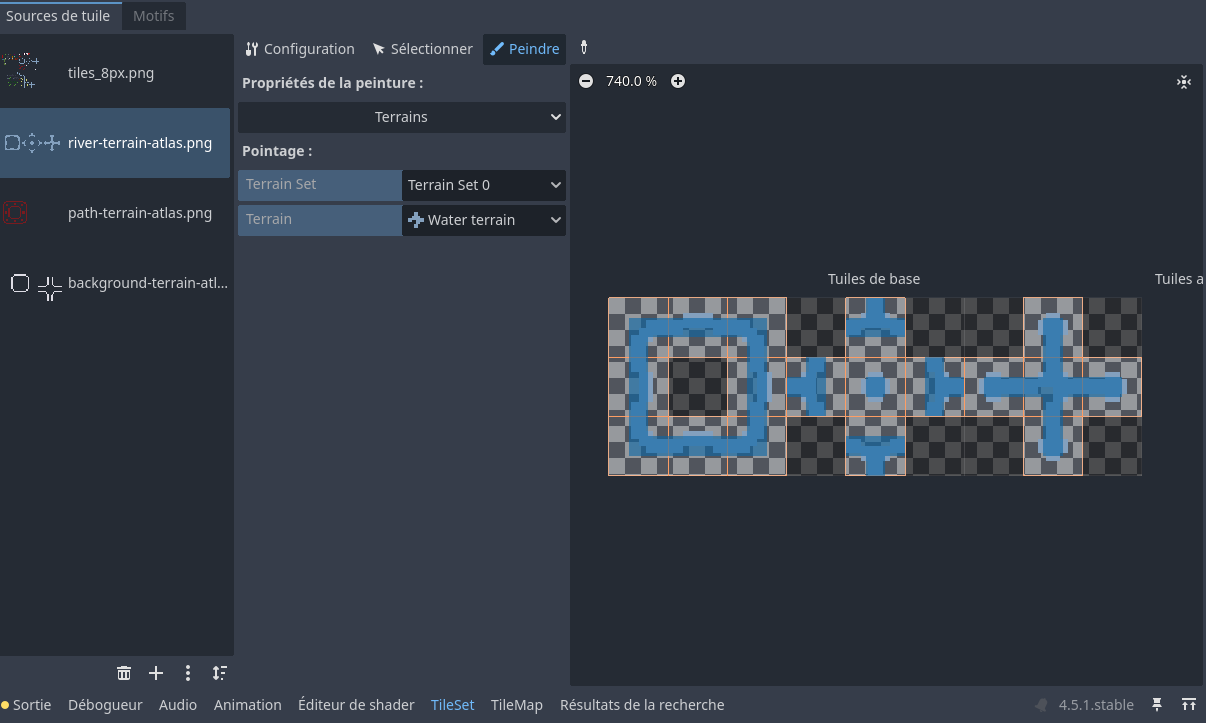
In your "TileSet" tab, go in the "Paint" sub-tab, select "Terrains" and the terrain you just defined. You can now paint over the tiles of your tileset to describe the shape of it. This shape will be used to modify which tile is placed depending on its immediate neighbors.
Once everything is set up, you can either paint your Tilemap Layer directly in the editor or place tile by code. Your tiles should automatically use the correct sprite depending on its neighbors. Drawing the correct tiles and painting the correct terrain pattern can be tricky when you are not familiar with the system so check out Godot's documentation on the subject.
You can also generate the terrain via code. This is necessary if, like me, you place your tile using scripting at runtime. In Void Builder, some tiles are standard, they just have one version of it (grove, rock, plain etc.). Other tiles, are linked to a terrain and as such have multiple sprites of it. This is the case for the river tile, but also for the monster path and for the play area tiles.
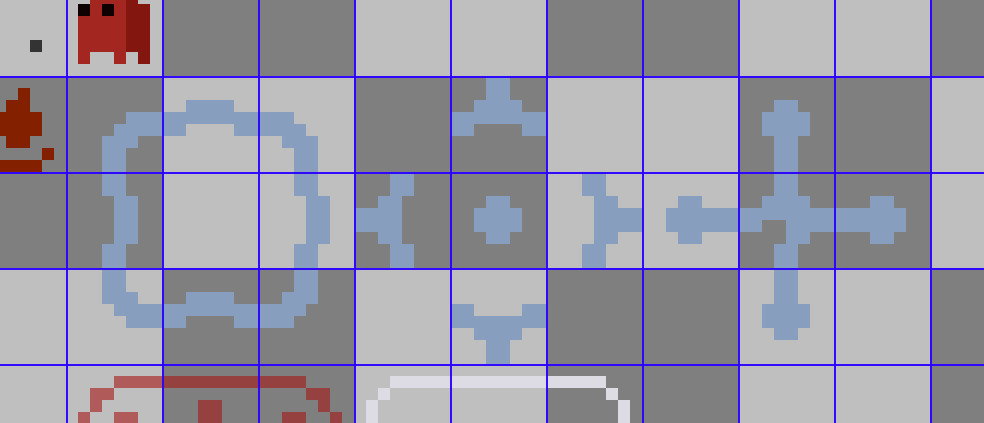
Now a player only places tiles one by one. And when it comes to river tiles, the player does not choose if they place a straight river, or a turn, in which direction etc. They just place the default puddle-looking river tile and the game automatically switches the sprite to match the shape of the river. Additionally, I would not want to add 20-something versions of the river tile and having to set the data layer for each one, so having only one river tile suits me.
To solve this, I created additionnal atlas (spritesheets if you will) next to the main atlas that hold all my tiles. And each atlas is painted with a specific terrain. Having multiple terrains is not necessary but all tiles painted with a given terrain will snap together. So if tiles must remain isolated, as is the case with rivers and roads for example, they must be painted on separate terrains.
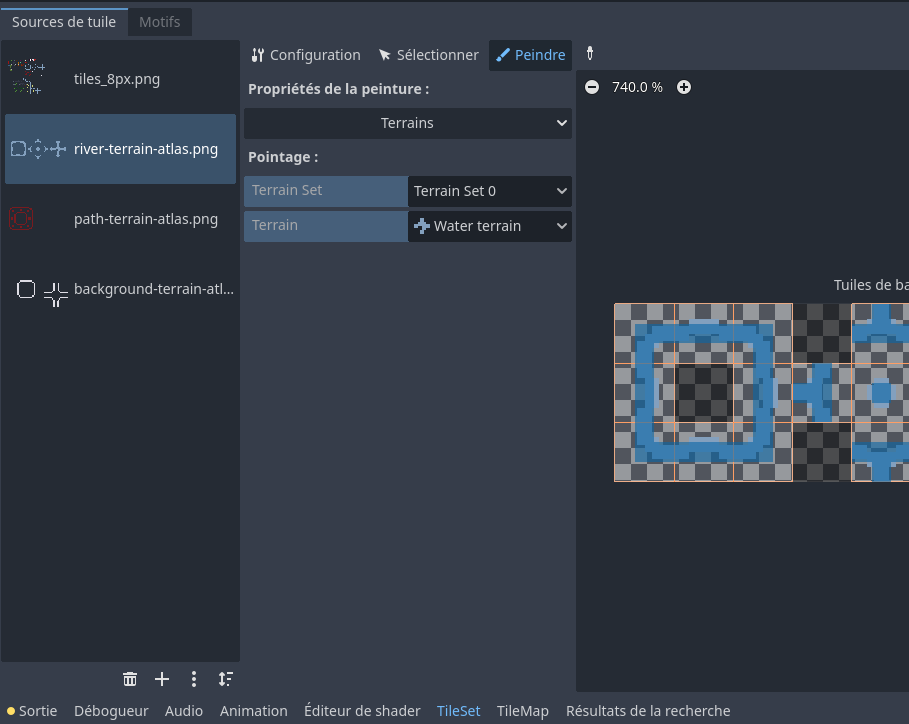
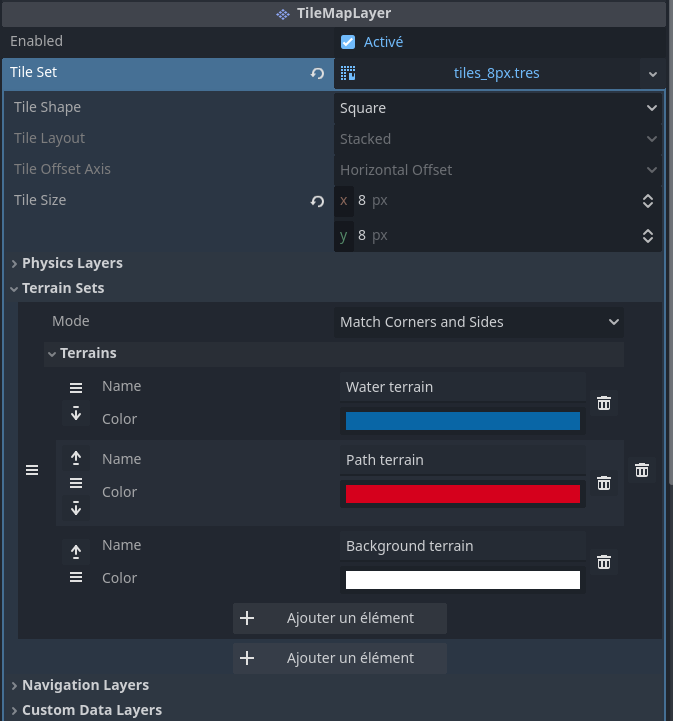
At this point we are almost done, but when we place a tile from the main atlas it still does not snap to its neighbors. We lack two things:
First, the tile you place (the puddle-like river from the main atlas) is not currently part of a terrain. We need to paint it on the main atlas with the right terrain.
Second, because our tiles are placed via code, we need to ask the Tilemap layer to update itself and generate the terrain when we place a tile.
1## called whenever a tile linked to a terrain is placed
2func update_terrain_tiles(tilemap_position : Vector2i):
3	var source : TileSetAtlasSource = tile_set.get_source(source_id);
4	var tile_data = source.get_tile_data(get_cell_atlas_coords(tilemap_position), 0);
5	var terrain_set = tile_data.terrain_set;
6	var terrain_id = tile_data.terrain;
7
8	if terrain_id != -1:
9		terrain_id_by_cell.set(tilemap_position, terrain_id);
10		set_cells_terrain_connect(get_cell_by_terrain(terrain_id), terrain_set, terrain_id)
This concludes a long article on a subject I really appreciated working on. Hopefully, I did not bore you to death. I hope to see you in the next post. 🦦
 Sea Otter Games